![Shape=Rounded Square@2x.png]](https://help.c8health.com/hs-fs/hubfs/Shape=Rounded%20Square@2x.png?height=40&name=Shape=Rounded%20Square@2x.png)
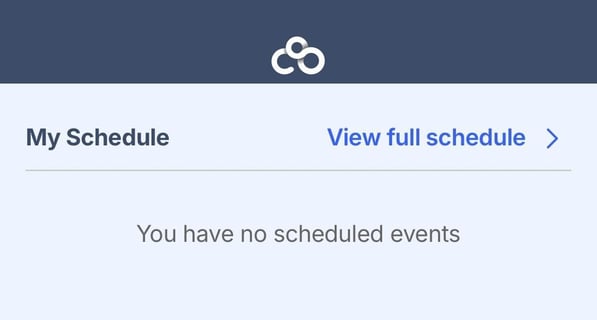
The My Schedule view defaults to your individual shift assignments. If you have no scheduled shifts, the view will appear as shown above. When shifts are assigned, the view will display a summary of your upcoming locations and times; click the button 'View full schedule' in the top-right corner to access the entire schedule.
Navigating the Full Schedule
When viewing the full schedule, you can toggle between two primary views: By Person or By Assignment.
Filtering by Person
This is the default view, allowing you to track specific colleagues or your own assignments.
-
Select the Tab: Click the By Person tab at the top of the screen.
-
Select a User: Use the dropdown menu in the top-left corner.
-
Search: Type a name into the search bar or scroll through the list to select a specific provider.
-
This view highlights the assigned location or role alongside the shift time.
-
Filtering by Assignment
Use this view to see who is covering a specific assignment
-
Select the Tab: Click the By Assignment tab at the top of the screen.
-
Specify Assignments: By default, this shows all areas. To narrow your view, click the All Assignments dropdown in the top-left.
-
Multi-Select: You may select one or multiple assignments to view simultaneously. Once selected, click the checkmark icon in the top-right to apply your filters.
-
This view shows the assignment name, shift time, and the name of the assigned provider.
-
Schedule Timeline and Details
Once your view is set, the schedule will automatically display the most current date with an active assignment.
-
Date Range: You may scroll through the schedule to view data from 30 days in the past to 30 days in the future.
-
Assignment Details: Click on any specific assignment to view the start/end times and designated contacts.
-
Provider Profiles: Click on a contact’s name within the assignment details to view their profile and contact information.